


Introduction to cPanel: Your Gateway to Web Hosting Management in 2026
Welcome to the comprehensive guide on navigating cPanel in 2026. Whether you’re a novice web developer or a seasoned IT professional, understanding how to effectively use cPanel is crucial for managing your web hosting environment. As one of the most popular web hosting control panels, cPanel offers a user-friendly interface packed with powerful features that simplify managing a web server and website. This guide will walk you through the essentials of cPanel, from the basics to more advanced functionalities.
cPanel continues to evolve, reflecting the latest trends in web hosting and user needs. As a beginner, you might feel overwhelmed by the myriad of features available. However, by the end of this guide, you’ll have a solid grasp of cPanel’s capabilities and how to leverage them to enhance your website management tasks.
Getting Started with cPanel
The first step in mastering cPanel is accessing it. Typically, your web hosting provider will supply you with a URL, username, and password to log into cPanel. Once logged in, you’re greeted by a dashboard that categorizes various tools and features into distinct sections. Familiarizing yourself with this layout is key to navigating cPanel efficiently.
The primary sections include Files, Databases, Domains, Email, Metrics, Security, Software, and Preferences. Each section hosts specific tools designed to perform tasks related to the category. For example, the Files section allows you to upload, manage, and edit files on your server, while the Databases section is where you handle MySQL databases.
Setting Up Your Domain
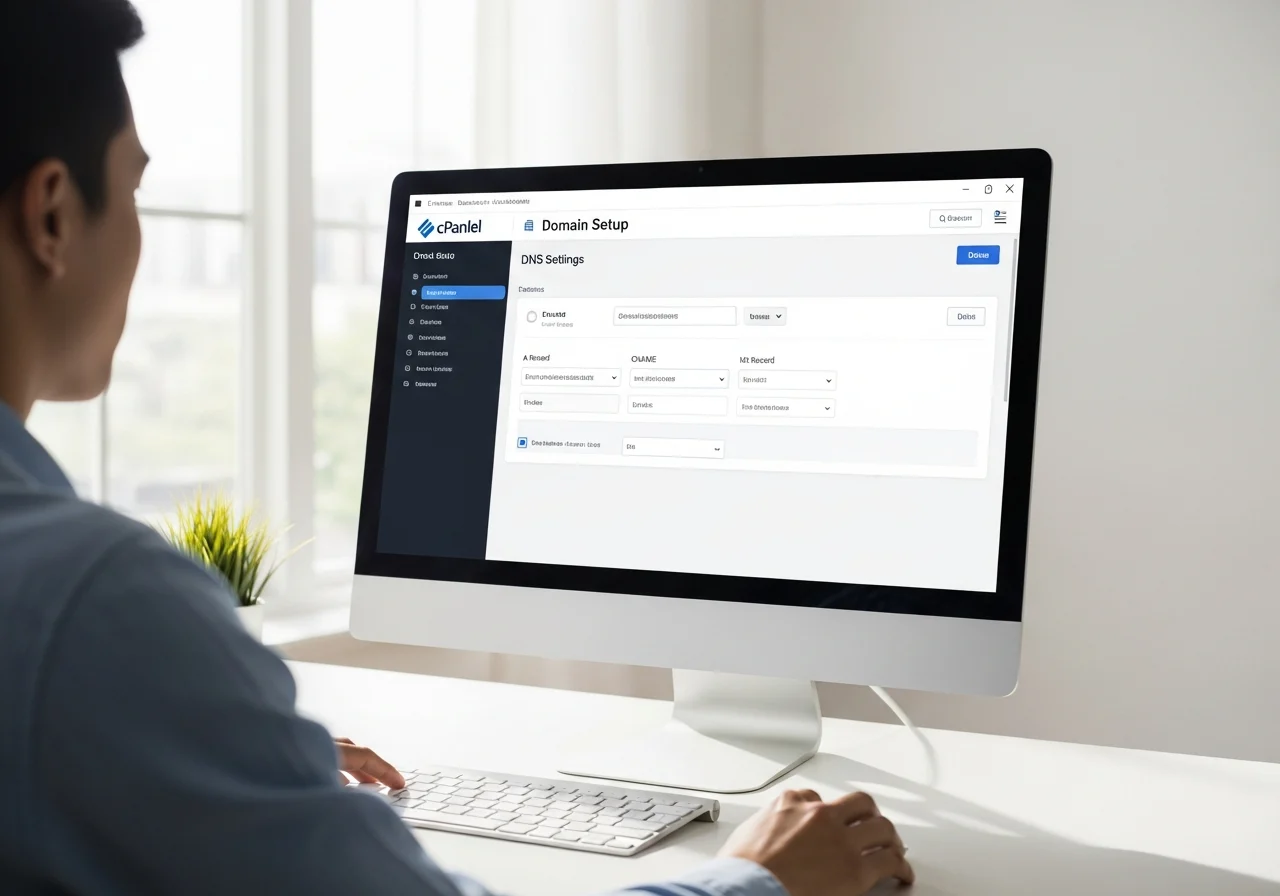
One of the first tasks you’ll likely undertake in cPanel is setting up your domain. This is done through the ‘Domains’ section, where you can add new domains or subdomains, manage DNS settings, and create domain redirects. If you’re transferring a domain from another provider, cPanel makes it easy to update name servers and other DNS records.
Managing domains in cPanel is straightforward. For instance, adding a new domain involves entering the domain name, specifying the document root, and choosing options like creating a new FTP account automatically. This process allows for quick deployment and management of multiple websites from a single hosting account.
Managing Files with cPanel’s File Manager
The File Manager in cPanel is a powerful tool that replicates the functionality of a desktop file system, allowing you to manage your website files directly from your browser. This tool supports uploading, downloading, editing, and deleting files effortlessly.
To upload files, navigate to the desired directory and select the ‘Upload’ option. You can drag and drop files from your computer or use the traditional file selection method. Editing files is similarly intuitive. By right-clicking a file, you can choose to edit it using the built-in editor, which provides syntax highlighting for several programming languages.
Using FTP for File Management
For those who prefer using FTP, cPanel supports this through the ‘FTP Accounts’ feature in the Files section. Creating an FTP account involves specifying a login name, password, and directory access level. FTP offers a robust alternative for bulk uploading or downloading files, especially useful for large websites.
Many users combine both File Manager and FTP to manage their websites, utilizing the strengths of each tool. For instance, while FTP is great for moving large amounts of data, File Manager is perfect for quick edits or setting permissions on specific files.
Database Management with cPanel
Databases are integral to most modern websites, storing everything from content to user data. cPanel simplifies database management with tools like MySQL Databases and phpMyAdmin, which can be accessed from the Databases section.
Creating a new database is straightforward. You simply specify a name and create a user with password protection. Assigning this user to the database with appropriate permissions completes the setup. For advanced management, phpMyAdmin provides a graphical interface to run SQL queries, import/export data, and perform other database tasks.
Optimizing Database Performance

Database optimization is key to ensuring your website runs smoothly. Regularly removing unnecessary data, indexing tables, and backing up your databases are best practices. cPanel’s built-in backup tools can schedule automatic backups, ensuring you can restore data if something goes wrong.
Learning to optimize and manage databases effectively can significantly improve your website’s performance and reliability, particularly for data-driven applications or high-traffic sites.
Email Management in cPanel
cPanel provides extensive tools for managing email accounts associated with your domain. Through the Email section, you can create new email accounts, set up autoresponders, and manage spam filters, among other tasks.
Creating an email account is a simple process. Enter the desired address, choose a strong password, and set the mailbox quota. Once set up, you can access your email through webmail or configure it with email clients like Outlook or Thunderbird using the provided server settings.
Enhancing Email Security
Security is a top priority when managing email. cPanel offers features to combat spam and secure communications, such as SpamAssassin and encryption options. Enabling these features protects against phishing attacks and ensures your communications remain private.
Regularly updating passwords and monitoring email account activity are additional measures to keep your email secure. cPanel’s email tracking tools can help identify any unusual activity, providing alerts for potential breaches.
Security Features in cPanel
Security is paramount, and cPanel offers a robust suite of tools to protect your website and data. From SSL/TLS management to IP blockers and virus scanners, cPanel equips you with everything needed to maintain a secure web environment.

Installing an SSL certificate is a critical step in securing your website. cPanel simplifies this process with AutoSSL, automatically issuing and renewing certificates for your domains. This not only secures data transmitted between your server and clients but also boosts your site’s credibility and search engine ranking.
Advanced Security Configurations
For advanced users, cPanel offers tools like SSH access for secure remote server management and the ability to configure custom firewall rules. These features provide additional layers of security, allowing you to tailor protections to specific needs.
Regular security audits, available through cPanel, help identify vulnerabilities and ensure configurations comply with best practices. Keeping your server software up-to-date is also recommended to mitigate potential risks.
Mastering cPanel for Effective Website Management
Navigating cPanel in 2026 is an essential skill for anyone involved in web hosting and management. By understanding and utilizing its features, you can effectively manage your domain, files, databases, email, and security settings with ease. As technology continues to advance, cPanel remains a reliable and robust platform that adapts to the evolving needs of web administrators and developers alike.
Continuous learning and exploration of cPanel’s capabilities can unlock new efficiencies and opportunities for your web projects. With the knowledge gained from this guide, you are well-equipped to take full advantage of what cPanel has to offer in 2026 and beyond.
Exploring Advanced Features in cPanel
Beyond the basic functionalities, cPanel offers a suite of advanced features that can significantly enhance your web hosting experience. These tools are particularly beneficial for business websites or developers seeking to optimize their workflows and site performance.

One such feature is the ‘Cron Jobs’ tool, which allows you to automate repetitive tasks by scheduling scripts or commands to run at specific times. This can be particularly useful for database maintenance, sending out periodic newsletters, or updating site content automatically. Understanding how to effectively configure cron jobs can save time and decrease the likelihood of human error.
Using the Terminal Interface
The Terminal feature in cPanel provides direct command-line access to your server, enabling advanced users to execute commands directly. This can be a powerful tool for those familiar with Linux commands, allowing for efficient file management, software installations, and system diagnostics.
While powerful, the Terminal should be used with caution, as incorrect commands can affect the whole server. It’s advisable to have a good understanding of what each command does before executing it. cPanel’s documentation and community forums are excellent resources for learning about command-line operations.
Optimizing Website Performance with cPanel
Performance optimization is a continuous process, essential for providing a smooth user experience and maintaining high search engine rankings. cPanel offers several tools to help optimize website performance, including caching solutions and resource monitoring.
The ‘Optimize Website’ feature, accessible under the Software section, allows you to compress content served by your site, reducing load times and bandwidth usage. Enabling Gzip compression is one of the most effective ways to improve site speed, particularly for content-heavy websites.
Monitoring Resource Usage
cPanel’s ‘Resource Usage’ tool provides an overview of your account’s CPU, memory, and disk space usage. Monitoring these metrics is crucial for identifying performance bottlenecks and understanding the impact of your applications on server resources. Regularly checking resource usage helps in making informed decisions about scaling or optimizing your hosting plan.

For high-traffic websites, upgrading to a VPS or dedicated server might be necessary to ensure consistent performance. cPanel’s scalability options make it easy to transition between hosting plans as your needs grow.
Leveraging cPanel’s Community and Support
The cPanel community is a valuable resource for users at all levels. With active forums, detailed documentation, and a supportive user base, you can find solutions to common issues, share tips, and stay updated with the latest cPanel developments.
Official cPanel documentation provides step-by-step guides and explanations of every feature, making it an indispensable tool for troubleshooting and learning. For more complex issues, cPanel’s support team is available to assist, ensuring that users can resolve technical problems efficiently.
Continuous Learning and Development
Staying updated with the latest cPanel updates and enhancements is crucial for maximizing its potential. Regularly reviewing release notes and attending webinars or workshops can provide insights into new features and best practices for utilizing cPanel effectively.
Additionally, participating in online courses or certification programs can deepen your understanding of web hosting management, making you more proficient in handling various hosting scenarios and challenges.
Final Thoughts
Mastering cPanel in 2026 involves understanding both its foundational and advanced features. By leveraging its robust tools and continuous learning, you can efficiently manage your web hosting environment, ensuring your website remains secure, performant, and scalable. With this guide as a starting point, you’re well on your way to becoming an adept cPanel user, ready to tackle any web hosting challenge that comes your way.
Need help with A Beginner’s Guide to Navigating cPanel in 2026?